Connect Google Drive
Add timestamps — qualified (eIDAS) if you choose — and advanced electronic seals to Drive files from Google Drive's side panel, and check them later. Your files never leave Google.
Contracts, board material and signed PDFs already live in Google Drive. This guide makes them provable from where they are: select a file, timestamp or seal it, and the evidence is saved next to it. Select it again later and Sigill for Google Drive tells you whether it is still the exact version that was sealed.
Your files never leave Google. Sigill receives a file's fingerprint (its SHA-256) and nothing else of its content. Drive already computes that fingerprint; when more is needed — a SHA-512 for a post-quantum seal, or an export of a Google Doc — it is made inside Google.
Availability: Sigill for Google Drive is being listed on the Google Workspace Marketplace. Until the listing is live, contact us to enable it for your Workspace.
What you get
- Evidence where the file is. A timestamp (
.tsr) or seal (.p7s) is saved as a new file in the same folder. The add-on never changes, moves or deletes your files. - Sealed PDFs. A copy of a PDF — or of a Google Doc's PDF export — with the seal inside (PAdES), which Adobe Reader shows and checks. See Sealed PDF.
- Google Docs, Sheets and Slides too. They are exported inside Google and the export is saved next to them — see Google Docs, Sheets and Slides.
- Advanced electronic seals. A detached CAdES seal over the file with a timestamp inside — the timestamp qualified (eIDAS) if you switch it on — and optionally a post-quantum hybrid: an ML-DSA-87 signature strengthens the classic seal. The seal is an advanced seal, not a qualified one; the qualified part is the timestamp.
- Your organisation's name on the seal. Seals use the Sigill Platform Seal by default. We recommend provisioning your organisation's own certificate, so the seal names your organisation as the issuer — see Whose name is on the seal?
- A check every time you look. Select a sealed file and the panel shows whether it is unchanged, who sealed it, when, and with which timestamp authority — or that it was changed after it was sealed.
- Who issued it. Every piece of evidence records the Google Workspace user who issued it, taken from Google's own signed identity token.
- No keys in Google. The add-on proves who you are with Google's identity token and receives a Sigill credential that lasts at most an hour and can only timestamp and seal.
Before you start
- You are an owner of your Sigill organisation.
- Your organisation has verified its domain in Sigill (Settings → Tenant → Domain verification), and it is the domain of your Google Workspace. Domain verification needs the Starter plan or higher.
- People use Google Workspace accounts on that domain. Personal Gmail accounts are not supported.
- Timestamps work on every plan. Seals and qualified timestamps need the Business or Scale plan.
Step 1 — Connect your Workspace
Start in Sigill. Open Settings → Apps and click Connect Google Drive.
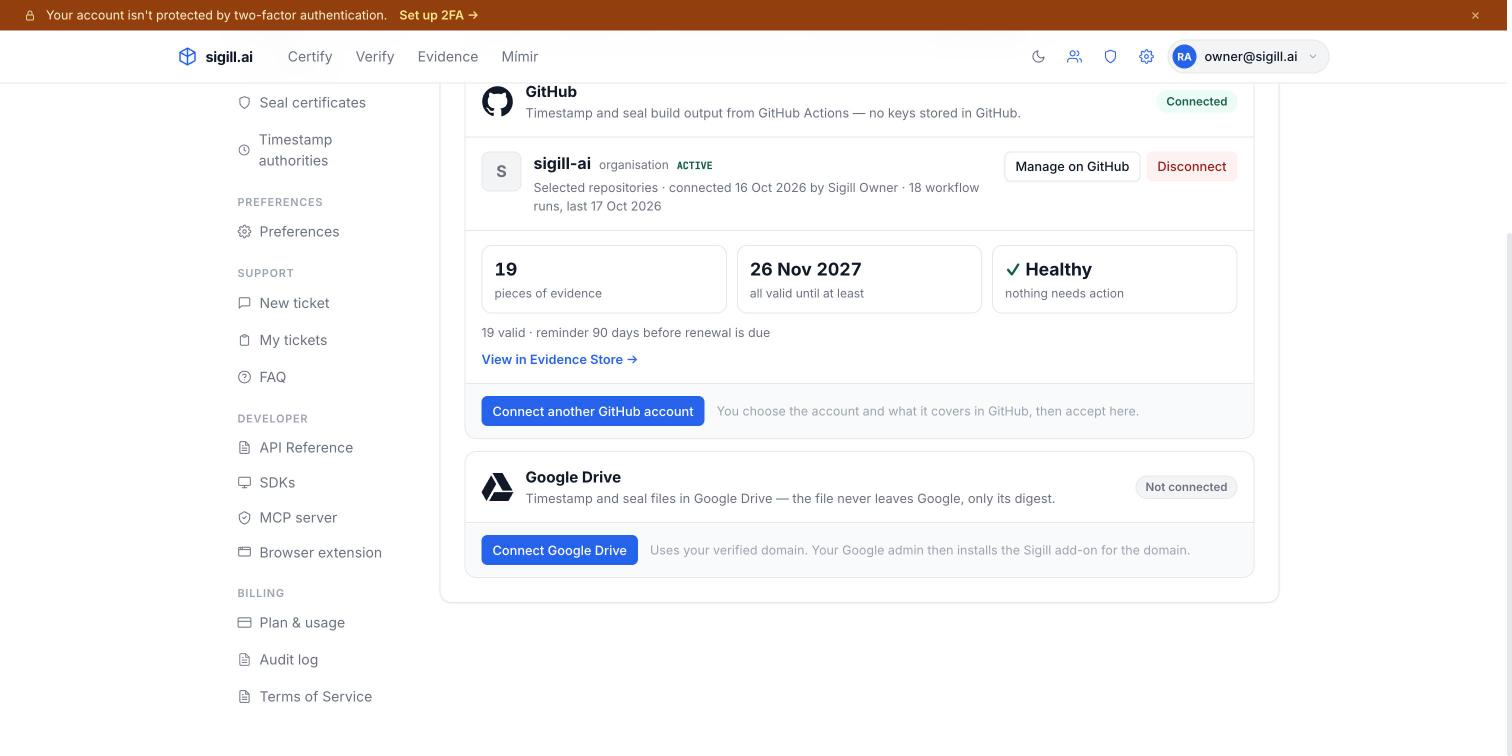
Settings → Apps lists the apps you can connect.
Accept. Sigill connects your verified domain — there is nothing to sign in to at Google, and Sigill stores no Google credentials. Anyone in your Workspace who uses the add-on now issues evidence as your Sigill organisation.
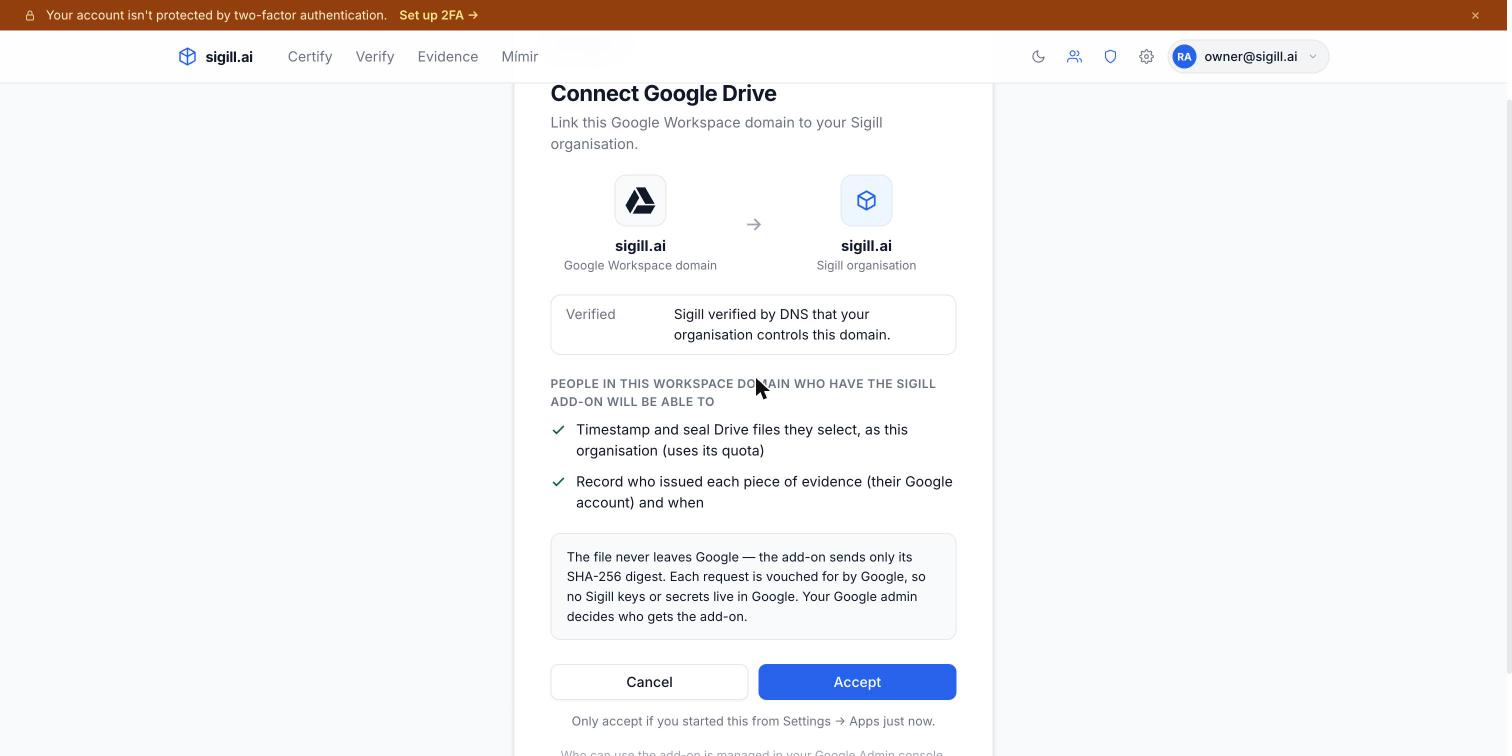
The binding is your domain: a Workspace can only ever map to the one Sigill organisation that verified it.
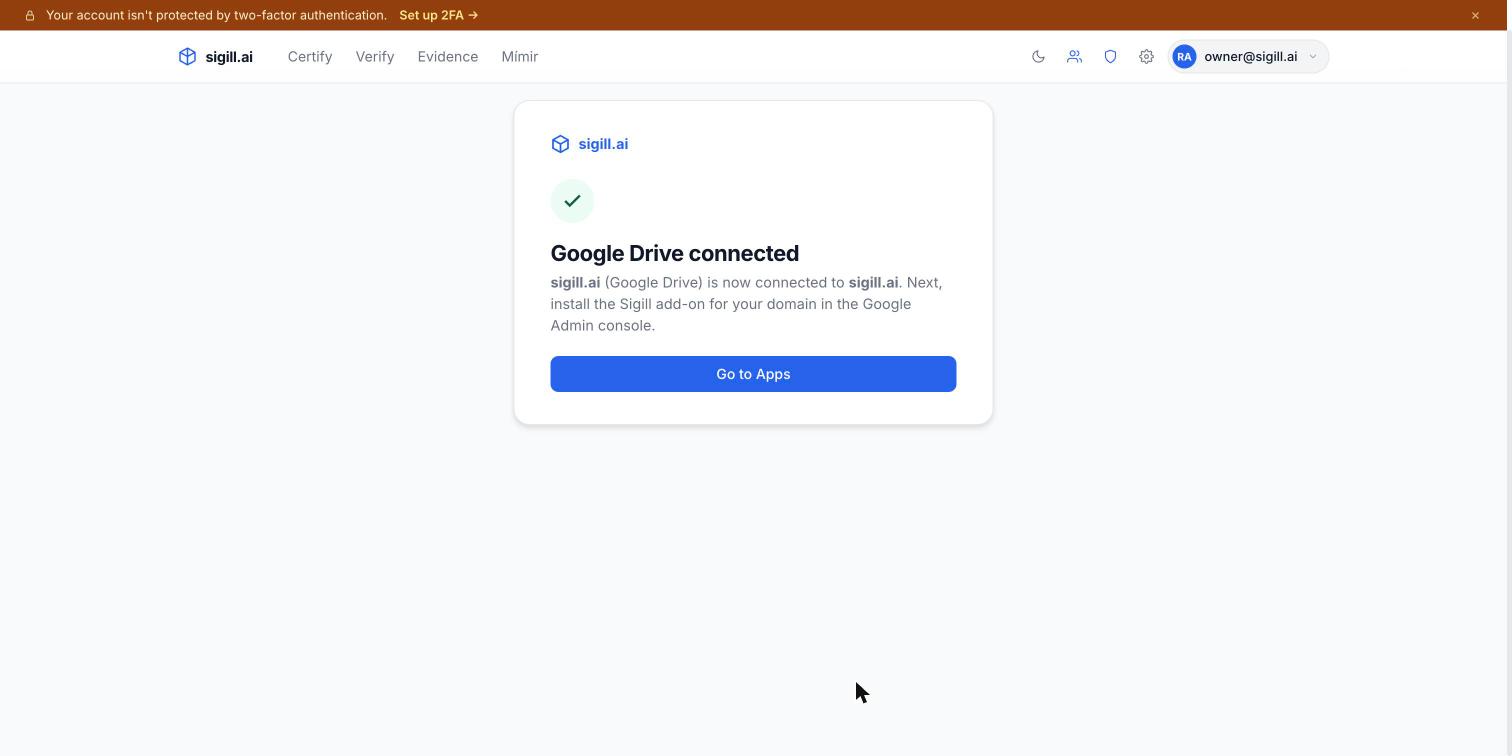
Disconnect here at any time — the add-on stops issuing evidence immediately.
Step 2 — Install the add-on
Install Sigill for Google Drive from the Google Workspace Marketplace. A Workspace admin can install it for everyone, or for selected organisational units, from the Google Admin console; otherwise each person installs it for themselves.
It then appears in Drive's side panel — the Sigill icon on the right.
Step 3 — Timestamp or seal a file
Select a file in Drive and open Sigill in the side panel. The first time, click Allow for this file: Google opens only that file to the add-on. The rest of your Drive stays closed to it.
Google then asks whether Sigill may access the full contents of the file — that is Google's standard wording for access to a single file. Sigill reads the file only inside Google, to compute its fingerprint (for most files Drive already has it; Google Docs, Sheets and Slides are exported inside Google first). The file itself is never sent to Sigill.
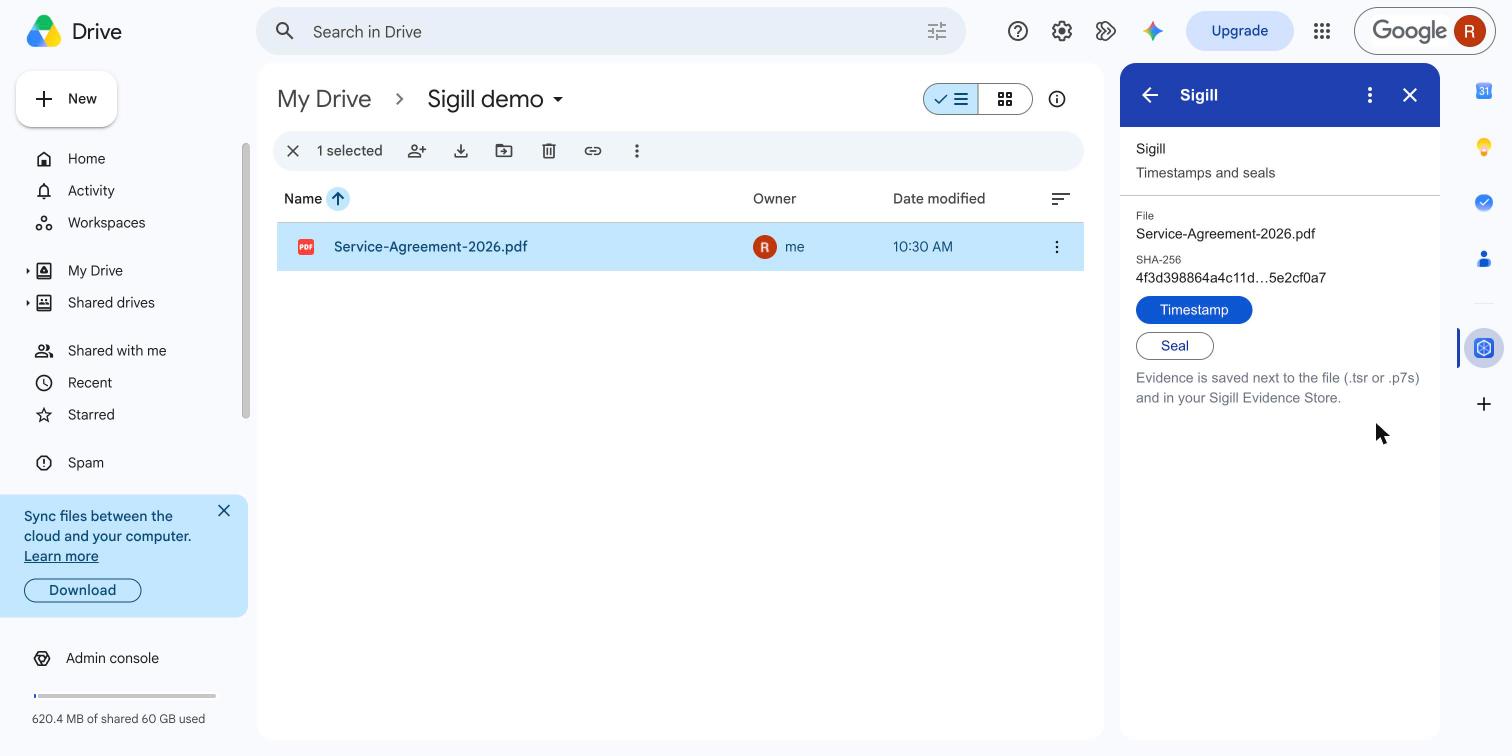
The panel shows the file and its fingerprint. Only the fingerprint goes to Sigill.
Timestamp proves when this exact file existed — an RFC 3161 timestamp, qualified (eIDAS) if you switch that on.
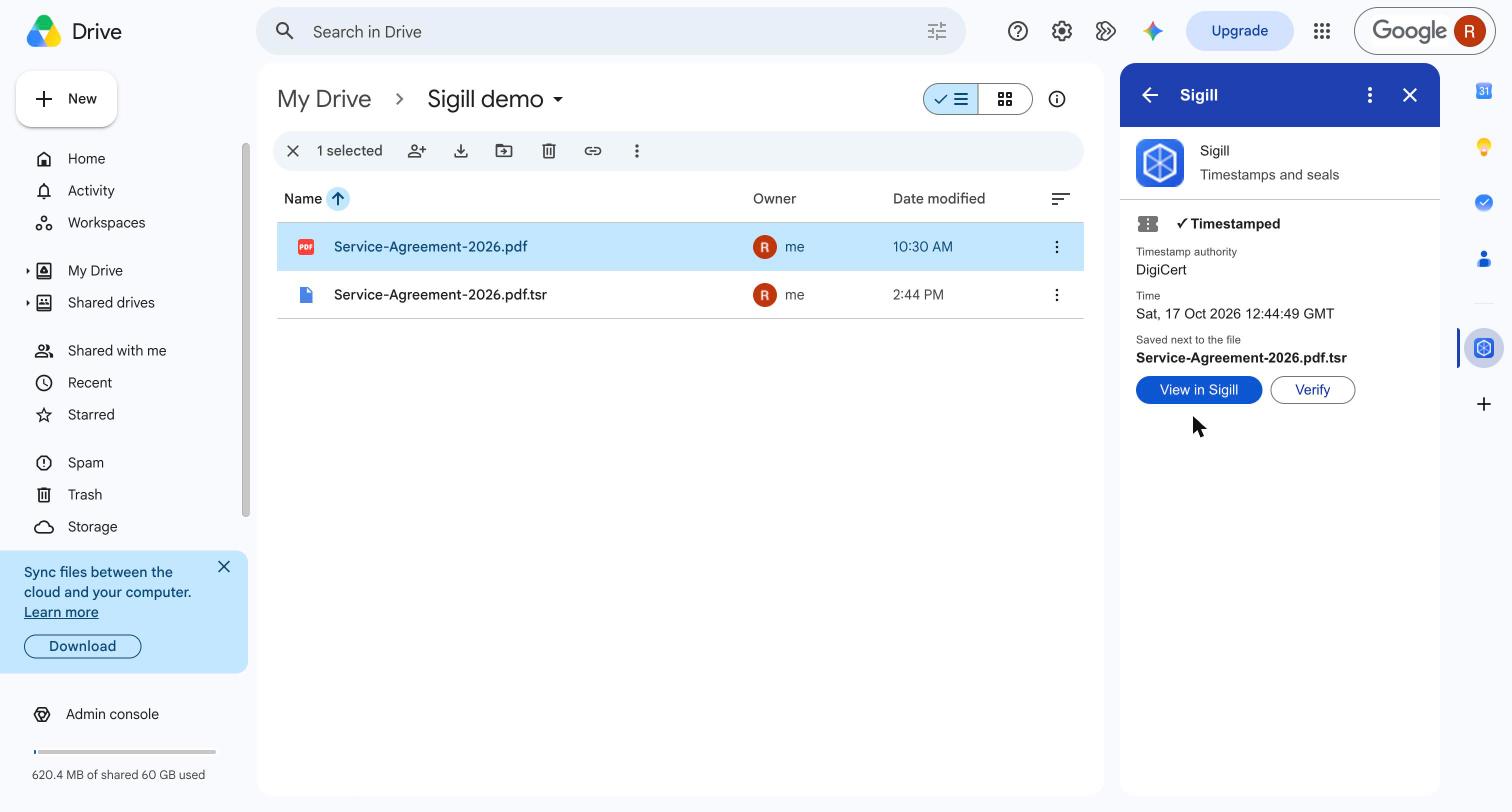
The .tsr is saved next to the file. The original is untouched.
Seal proves who issued it too: an advanced electronic seal (AdES) with a timestamp inside. Choose the certificate, and optionally a post-quantum hybrid seal and a qualified timestamp inside it.
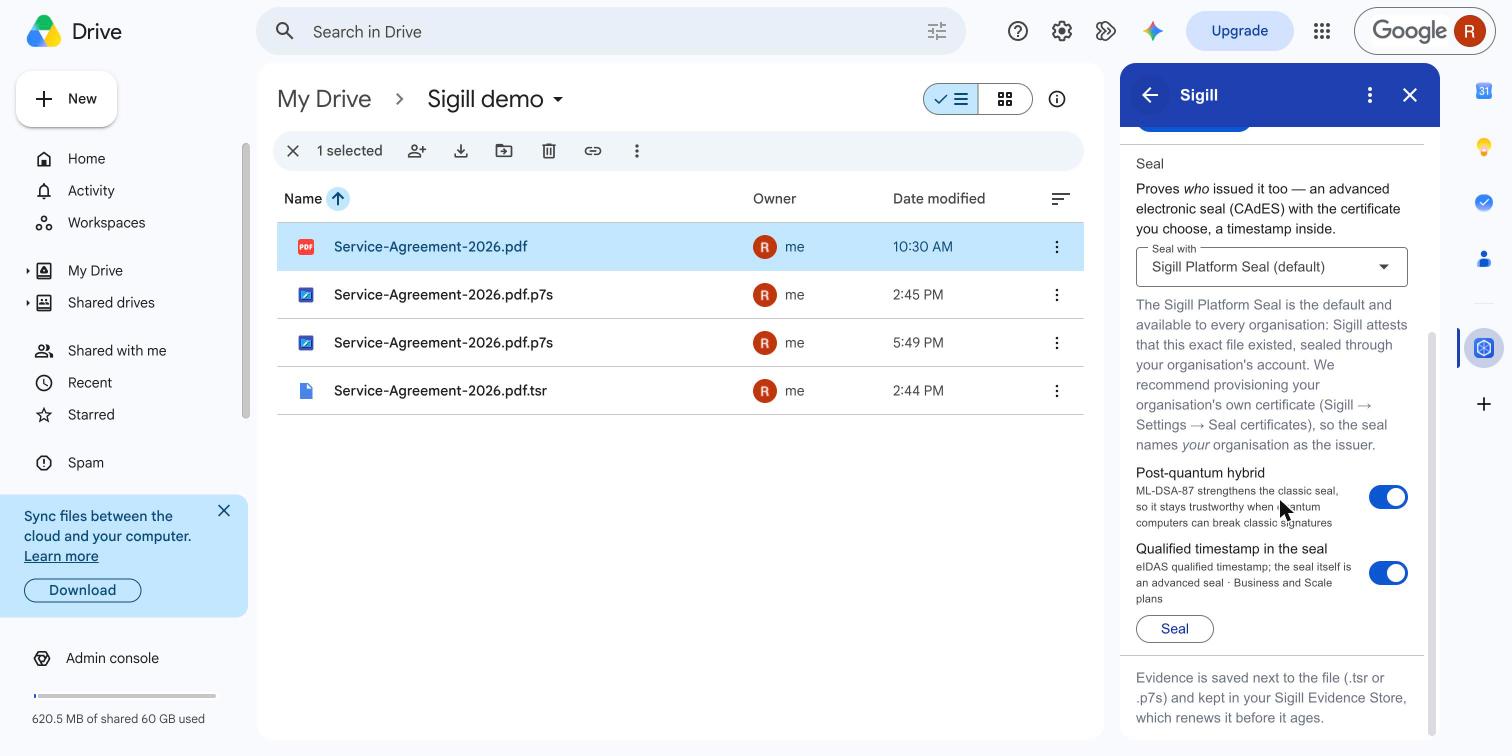
The Sigill Platform Seal is the default. Choose your organisation's own certificate when you have provisioned one — recommended, so the seal names your organisation.
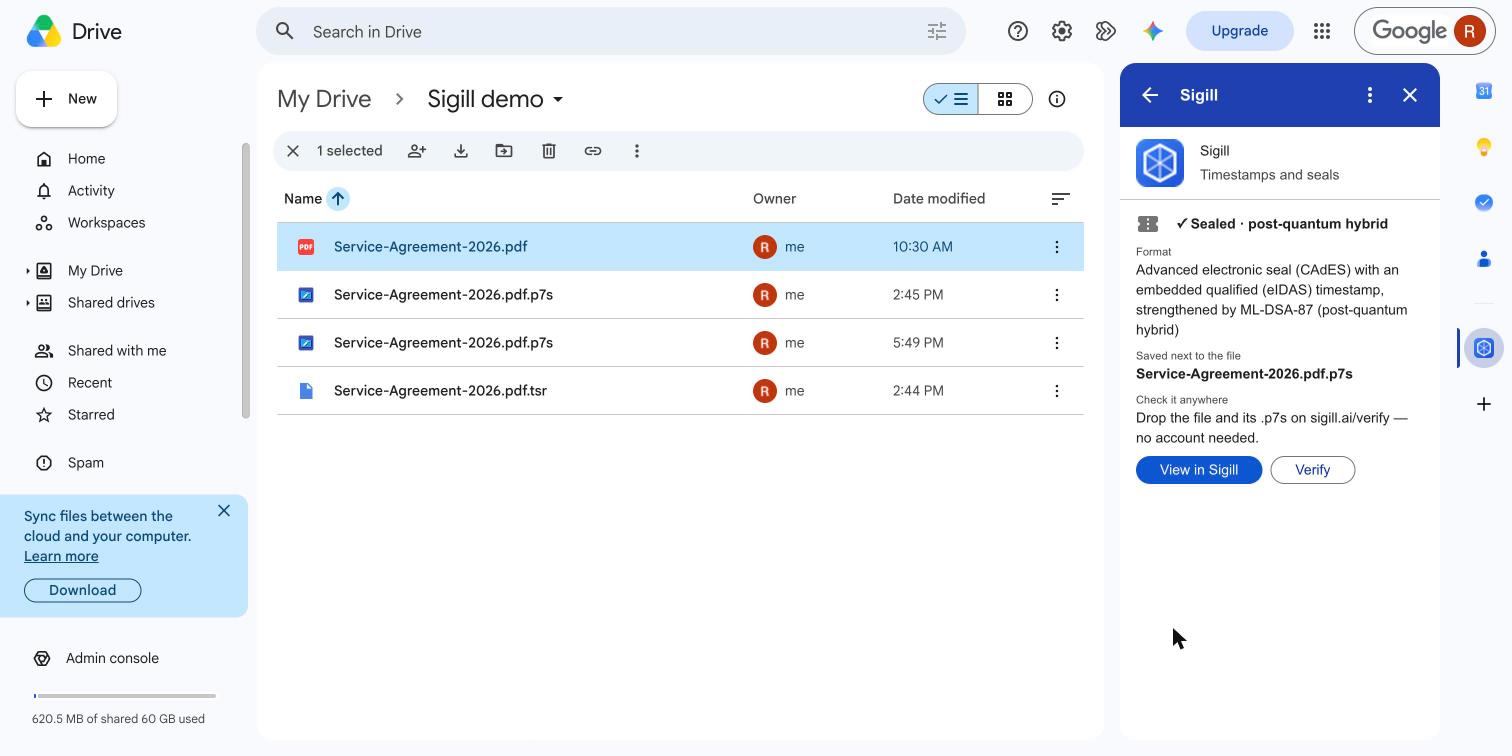
The .p7s is a detached CAdES advanced electronic seal with the timestamp embedded — here a qualified one.
Sealed PDF
For PDFs, and for Google Docs, Sheets and Slides, the panel also offers Create sealed PDF: a copy of the PDF with the seal inside it (PAdES), so it travels as one file and Adobe Reader shows the seal in its Signature panel.
- The copy is saved next to the original as
Contract (sealed 2026-10-18 09.30 UTC).pdf. The original is not changed. A Google Doc is first exported to PDF inside Google, as described below. - It uses the certificate chosen under Seal with, and optionally a qualified (eIDAS) timestamp inside the seal. Like every Sigill seal it is an advanced electronic seal.
- The PDF still never leaves Google. The add-on writes the signature section into the copy inside Google and sends Sigill only the fingerprint (SHA-256) of the bytes the seal covers. Sigill returns the signature, and the add-on puts it in place.
- Select the sealed PDF later and the panel checks the seal inside it, using that fingerprint and the signature, never the file. If anything was added to the PDF after it was sealed, it shows as changed after it was sealed.
Adobe Reader shows "the document has not been modified since this signature was applied". Whether it also shows the signer as trusted depends on Adobe's own list of trusted certificates.
Selecting a Google Doc, Sheet or Slides works a little differently — see the next section.
Google Docs, Sheets and Slides
A Google Doc, Sheet, Slides or Drawing is not a file with bytes of its own — it is a live document in Google's editor, so there is nothing fixed to fingerprint. When you timestamp or seal one, the add-on:
- exports it inside Google — as a PDF for Docs, Slides and Drawings, and as an Excel file (
.xlsx, every sheet with its values and formulas) for Sheets, or as a PDF if you choose Export as → PDF for the printed view; - saves the export next to the original, named after it with the time of the export:
Contract (PDF export 2026-10-18 09.30 UTC).pdf; - timestamps or seals that saved export, and saves the evidence next to it:
Contract (PDF export 2026-10-18 09.30 UTC).pdf.p7s.
This is why you see a new PDF or Excel file in the folder — it is not a duplicate. It is the exact file the evidence proves, kept as a normal file in your Drive. Keep it with its evidence: anyone can check the two together, with or without Sigill. Each new timestamp or seal of the document saves a new export, with its own time in the name, so earlier evidence keeps the file it proves. Your Google document itself is never changed.
What the evidence proves. The export — exactly what the document contained and, for a PDF, how it looked at that moment. Not the live document: you can keep editing it, and the evidence still proves the export.
When you select the Google document later, the panel shows two separate things:
- Export verified — the saved export matches its timestamp or seal. This is the cryptographic check.
- Source unchanged since export or Source changed since export — whether the document still matches the export. The add-on exports it again inside Google and compares the result with the export taken at the time. Changed means it was edited — or, rarely, that Google now exports it differently. This comparison is not part of the cryptographic proof, and the panel says so. For a Sheet saved as Excel, the comparison uses the printed view, so a change that doesn't show when printed (a formula that gives the same value, for example) isn't detected.
If someone edits the document while it is being exported, the add-on notices — two exports taken a moment apart differ — retries once, and otherwise stops without saving anything. Try again when the editing has settled.
Limits. Google exports documents up to 10 MB. For a larger one, download it (File → Download), upload that file to Drive, and timestamp or seal it there. Google Forms, Sites and other Google formats that cannot be exported are not supported.
Evidence made before saved exports (named … (PDF export).p7s or after a .pdf that isn't in the folder) is still checked the old way: against a fresh PDF export of the document. A change in how Google renders PDFs can make that check differ even if nobody edited the document.
Step 4 — Check a file later
Select a file that has Sigill evidence next to it, and the panel checks it straight away:
- Unchanged — who sealed it, when, the timestamp authority (and whether it is qualified, confirmed against the EU trusted list) and the post-quantum signature.
- Changed after it was sealed — the file is no longer the version the evidence proves. Seal the new version; the evidence for the old one is kept, and Drive keeps earlier versions under File → Version history.
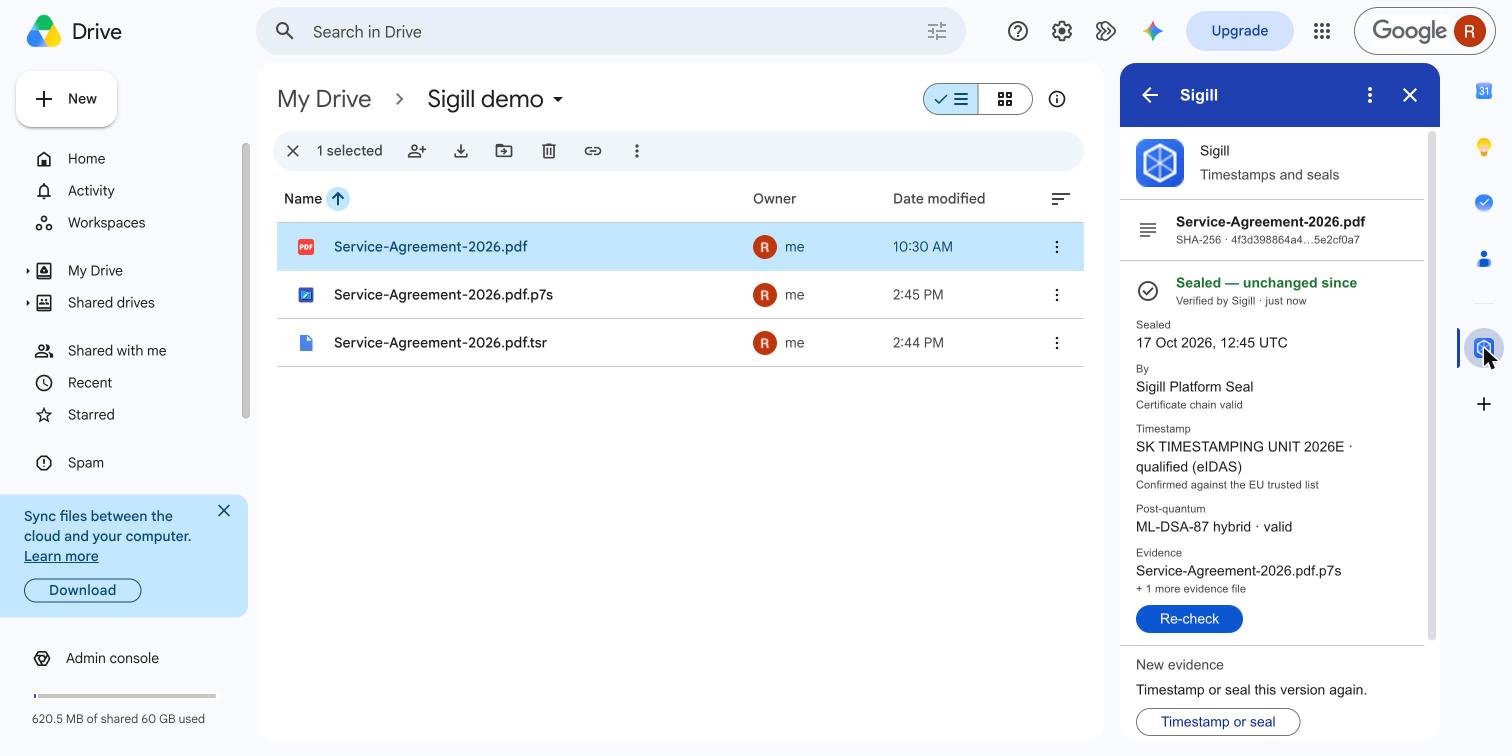
The check sends Sigill the file's fingerprint and its .p7s — never the file.
Select a sealed PDF and the panel checks the seal inside it — the same result Adobe Reader shows.
Select the .p7s or .tsr itself and the panel shows what it proves and for which file. Evidence is never timestamped or sealed again; Sigill renews timestamps in your Evidence Store before they age.
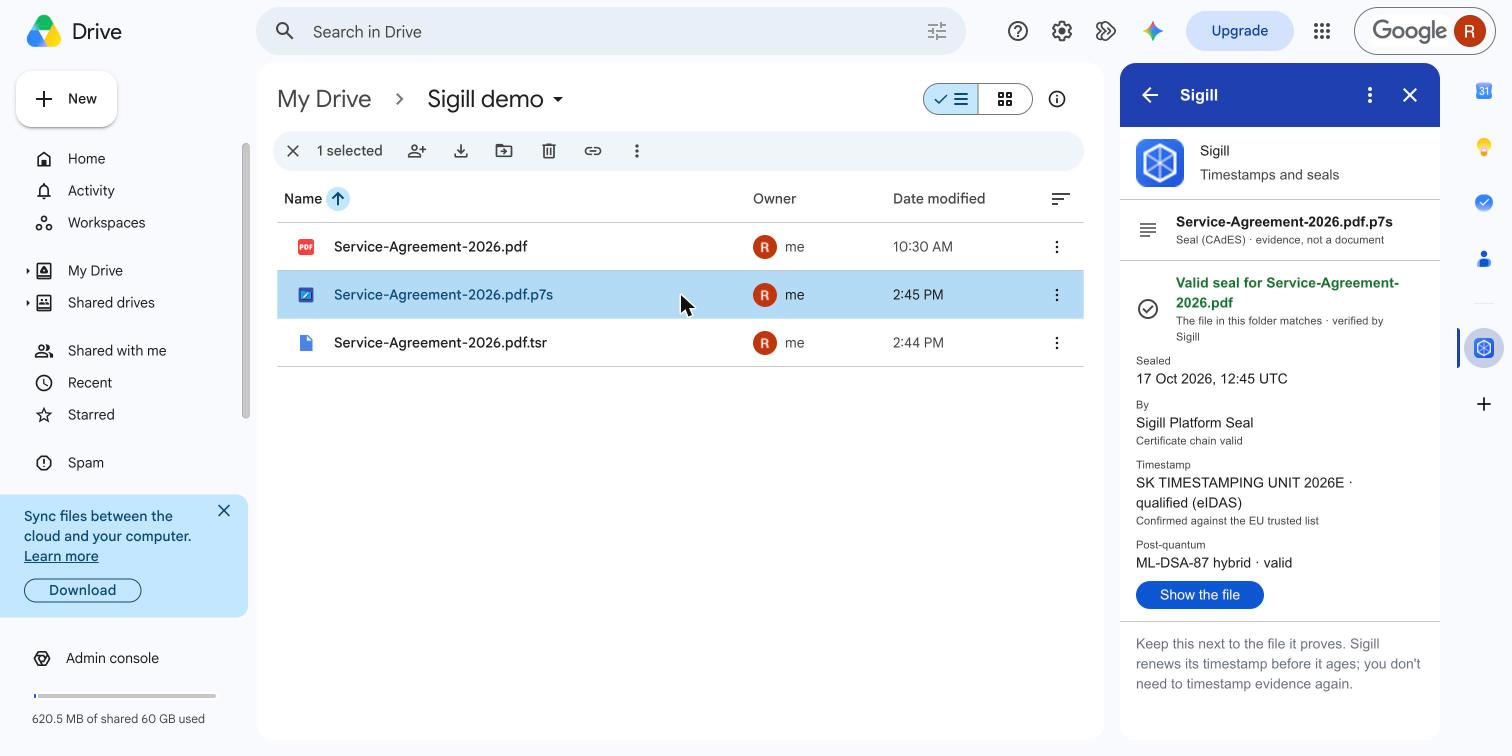
Evidence, not a document: no "seal the seal".
Anyone can check a file independently, without Sigill or an account: download the file and its .p7s and drop both on sigill.ai/verify — verification happens in the browser. Any CAdES validator (OpenSSL, Adobe, the EU DSS tool) confirms the classic signature and timestamp; the post-quantum signature needs a validator with ML-DSA support, which sigill.ai/verify has.
Whose name is on the seal?
Every Sigill organisation can seal with the Sigill Platform Seal. It is the default and a quick way to start: Sigill attests that this exact file existed at that time, sealed through your organisation's account.
We recommend provisioning your organisation's own certificate (Settings → Seal certificates, Business plan — see Bring your own certificate). The seal then names your organisation as the issuer, which is what customers, auditors and regulators expect to see. Once provisioned, it appears in the add-on's Seal with list.
Either way the seal is an advanced electronic seal. Qualified electronic seals are not offered today; what is qualified is the timestamp, which carries the statutory time claim under eIDAS.
Who can issue evidence?
Everyone with an account on your verified domain who uses the add-on can timestamp and seal as your Sigill organisation, with any seal certificate your organisation may use. Each piece of evidence records who issued it. Control it where you already manage your Workspace:
- Install the add-on only for the organisational units that should use it (Google Admin console → Apps → Google Workspace Marketplace apps).
- There is no per-person limit on which certificate is used: anyone who has the add-on can seal with your organisation's certificate. If only some people should, install the add-on only for them.
- Disconnect under Settings → Apps to stop all issuing at once. Removing your domain verification does the same.
What the evidence proves
- That this exact file existed at the timestamp's time — with a qualified timestamp, as a statutory time claim under eIDAS.
- For a seal, who issued it — your organisation's certificate or the Sigill Platform Seal, as an advanced electronic seal.
- Who asked for it. The Workspace user and domain come from Google's signed identity token; nobody can claim to be someone else.
It does not prove what the file means or who wrote it — only that these exact bytes existed then, and who sealed them.
Troubleshooting
- "Your Google Workspace domain isn't connected" (
google_not_connected) — no Sigill organisation has connected this domain, or its domain verification was removed. An owner connects it under Settings → Apps. - "Sigill couldn't confirm your Google identity" (
invalid_id_token) — the account is not a Google Workspace account on a verified domain (for example, a personal Gmail account). - "Sigill could not provide a qualified timestamp just now" — nothing was saved. Try again; if it persists, your plan may not include qualified timestamps or its monthly quota is used up.
- "Your Sigill plan doesn't include this" (HTTP 402) — seals and qualified timestamps need the Business or Scale plan.
- "Signature not checked yet" — Sigill did not answer in time. The fingerprint check still shows whether the file changed; click Verify now.
- "The file it proves isn't open to Sigill" — select the original file and click Allow for this file first.
Reference
- Without the add-on (your own Apps Script or service): the token exchange and request bodies are in the API reference → Google Drive add-on.
- Privacy: what the add-on can access, what it sends, and what Sigill stores — Google Drive add-on privacy policy.